Installing Blueprints
Prerequisites
Blueprints are little plug-in programs that runs inside Sofie. They are the logic that determines how Sofie interacts with rundowns, hardware, and media.
Blueprints are custom JavaScript scripts that you create yourself (or download an existing one). There are a set of example Blueprints for the Spreadsheet Gateway and Rundown Editor available for use here: https://github.com/SuperFlyTV/sofie-demo-blueprints. You can learn more about them in the Blueprints section
To begin installing any Blueprint, navigate to the Settings page. Getting there is covered in the Access Levels page.
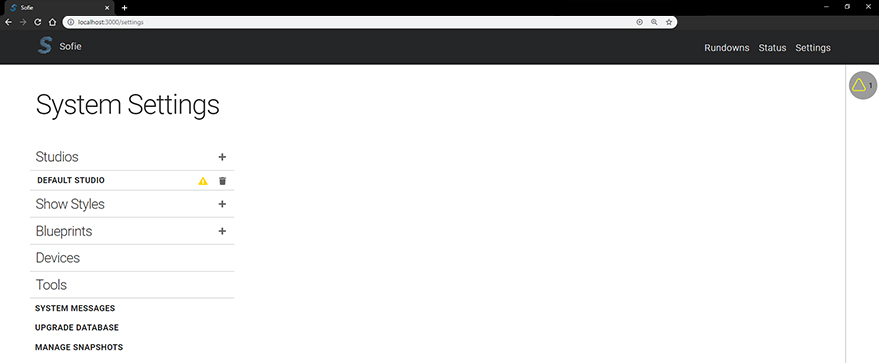
To upload a new blueprint, click the + icon next to Blueprints menu option. Select the newly created Blueprint and upload the local blueprint JS file. You will get a confirmation if the installation was successful.
There are 3 types of blueprints: System, Studio and Show Style:
System Blueprint
System Blueprints handles some basic functionality on how the Sofie system will operate.
After you've uploaded your System Blueprint JS bundle, click Assign in the blueprint-page to assign it as system-blueprint.
Studio Blueprint
Studio Blueprints determine how Sofie will interact with the hardware in your studio.
After you've uploaded your Studio Blueprint JS bundle, navigate to a Studio in the settings and assign the new Blueprint to it (under the label Blueprint ).
After having installed the Blueprint, the Studio's baseline will need to be reloaded. On the Studio page, click the button Reload Baseline. This will also be needed whenever you have changed any settings.
Show Style Blueprint
Show Style Blueprints determine how your show will look / feel.
After you've uploaded your Show Style Blueprint JS bundle, navigate to a Show Style in the settings and assign the new Blueprint to it (under the label Blueprint ).